Naija
Guide
Everything wey Sekuvo dey do, for the order wey you go likely need am. Nothing here need account or internet connection.
First time you dey run am
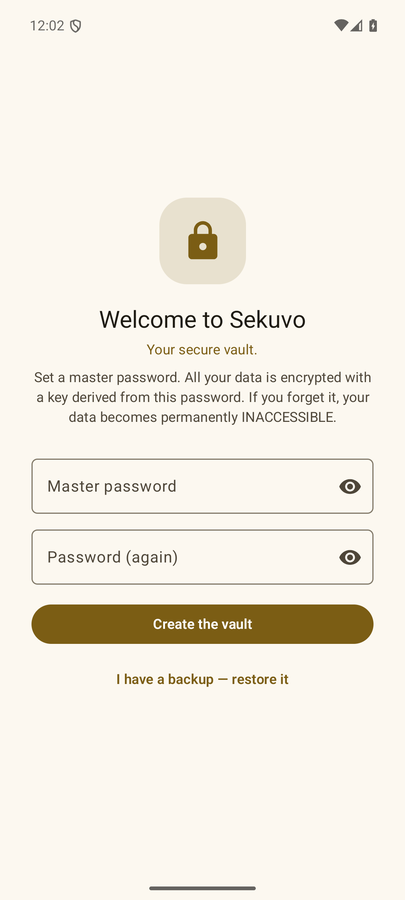
When you first open am, you go set master password. Every secret wey you save go encrypt with key wey dem derive from am, so na the only thing wey Sekuvo no fit help you recover — write am for safe place before you continue.
You dey come from another phone? Tap "I get backup — restore am" for the welcome screen. You still go set master password for dis device first, then the file picker go open by itself and your entries go come back.
If your phone get fingerprint or face sensor, Sekuvo go offer to use am right after setup. Na just convenience layer: the master password go always work, and na the same one wey go survive factory reset.
Wetin you fit save
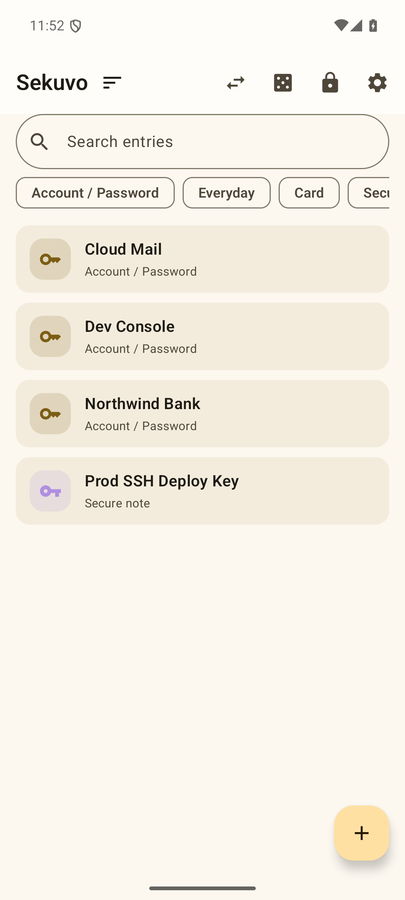
Four type of entries dey cover most of the things people dey keep for vault:
- Account / Password — username, password, site or app.
- Everyday — name, phone, email, address. The things wey forms dey always ask for.
- Card — card number, expiry date, CVV, IBAN.
- Secure note — free text, with subtypes for scripts, keys, recovery codes, and config files.
Account and Everyday entries fit also take custom fields: any "name + value" pair wey you like. Custom fields dey encrypt exactly like the built-in ones and dem dey show everywhere the others show.
Using secret without clipboard
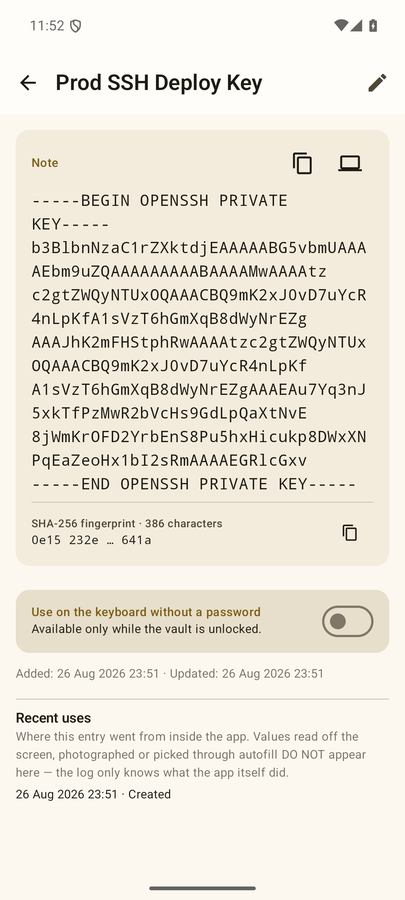
Other apps fit read clipboard, and na exactly where dem dey steal secrets. Na why Sekuvo dey offer three ways to send value straight to where e suppose go. You fit still copy — the clipboard dey clear within 45 seconds, or at least when you come back to di app; while you dey outside, Android no dey allow any app clear am — but the three channels below na the reason why dis app exist.
Autofill (inside the phone)
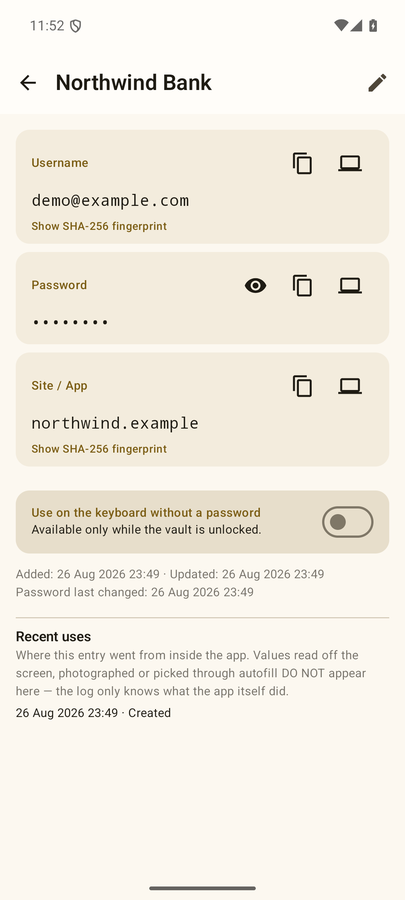
Sekuvo fit act as Android autofill service, so login and card forms go offer your entries direct.
To turn am on: Sekuvo → Settings → Turn on autofill → choose Sekuvo from the system list. Dis list name different for each device: for Samsung and Android 14+ na Passwords, passkeys & autofill → Preferred service; for pure Android na Autofill service.
After dis, touching username, password, or card field for any app go show your matching entries above the keyboard. If the vault dey lock, the unlock step go show first — while e dey lock, the system no go receive anything at all.
Sekuvo Keyboard (inside the phone)
The keyboard add-on dey type saved values direct inside any field, for any app, without any copy step.
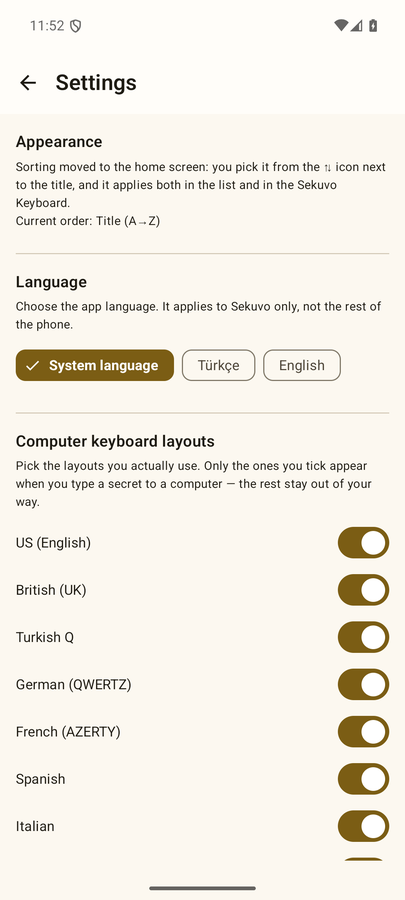
To turn am on: Sekuvo → Settings → Turn on the keyboard → turn am on for the system list, then choose "Sekuvo Keyboard" from the keyboard switcher any time you need am.
Entries wey you use recently dey stay on top, and 🔍 dey search titles, usernames, and addresses. While the vault dey lock, the keyboard go only show entries wey you mark for quick access — see below.
Typing for computer through Bluetooth
Your phone fit act as Bluetooth keyboard and e go type secret for where your computer cursor dey. Nothing no dey install for the computer, e dey work for Windows, macOS, and Linux, and the value no dey ever touch clipboard or network. E need Android 9 or newer.
Step by step
- For Sekuvo, open the entry and tap the 💻 icon near the field wey you want type. Keep dis screen open — the phone go only announce itself as keyboard while dis screen dey open.
- For the computer, add the phone as new Bluetooth device: for Windows na Settings → Bluetooth & devices → Add device → Bluetooth, for macOS na System Settings → Bluetooth.
- Confirm the pairing code for both sides.
- Go back to the phone, choose your computer from the list and wait for "Connected" to show.
- Choose the computer's keyboard layout — no be the phone own. Na the computer dey interpret the key codes, so if you choose wrong layout, character like @ " ? go quietly turn to something else.
- Click inside the field for the computer where the value suppose go.
- Tap Type for the phone. After three-second countdown — wey dey there so you fit click inside dat field — the value go type key by key.
E connect but nothing no dey type
Almost always na the same reason: the computer don pair your phone before as ordinary phone, so e never turn on keyboard service (HID) for am. The connection go succeed but the key strokes no go land anywhere.
- Remove the pairing for the computer (Remove device).
- Remove am for the phone too (Forget for Bluetooth settings). Both sides matter.
- Open the 💻 screen for Sekuvo and leave am open.
- Pair again, starting from the computer.
- To confirm for Windows: Device Manager → Human Interface Devices suppose now show Bluetooth HID device.
For macOS, the first connection fit open Keyboard Setup Assistant, wey go ask you press key beside the shift key. Until you close dat window, macOS no go process anything — na dis dey the usual reason for "connected but silent" for Mac.
Speed, and how you go check am
Key strokes dey send one by one, so long secret go really take time — the dialog go show estimate. Three speeds dey available, and the fact say Safe na the default no be by mistake. Before you increase am, use the ⏱ Speed test: e go type ten identical blocks wey space separate and e go report the measured characters per second. If even one block different, dat speed no safe for dis computer — go one step lower.
The speed test fit also serve as diagnosis: nothing wey type mean pairing problem, character wey scatter mean layout problem, typing wey cut mean speed problem.
While e dey type, you go see progress bar and Stop button. If the sending queue hang, Sekuvo go try again with waiting time wey dey increase, and if e still fail, e go stop and tell you which character e stop for — no secret go type halfway quietly.
How the lock dey work
The vault go lock the moment the screen wey e open on off — closing foldable phone dey count too. For dat moment, dem go wipe the key from memory; entry titles fit still dey show for the list, but nothing no fit decrypt.
Leaving the app while the screen still on no dey lock am. Na so we design am on purpose: the app, the keyboard, and autofill dey share one session, if not, switching go browser to paste password go lock you out for the middle of wetin you dey do.
Quick access — deliberate trade-off
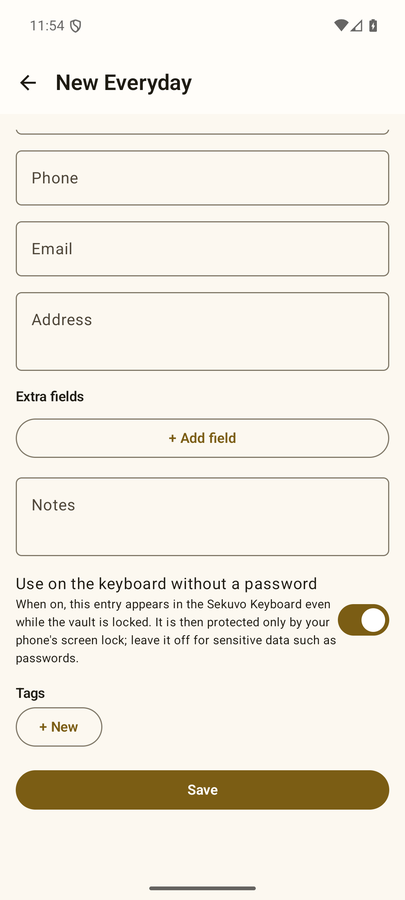
Entries wey you explicitly mark as "use for keyboard without password" dem go store am second time, encrypted with separate device key, so the keyboard fit read am while the vault dey lock.
The trade-off dey clear: dis kind entries na your phone lock screen dey protect am, no be your master password. No keep passwords for dis one. The mark dey off by default; the only exception na new Everyday entries, wey dey start marked because name and phone number na exactly wetin you go want close by — you fit turn off any of dem.
Backups and restore
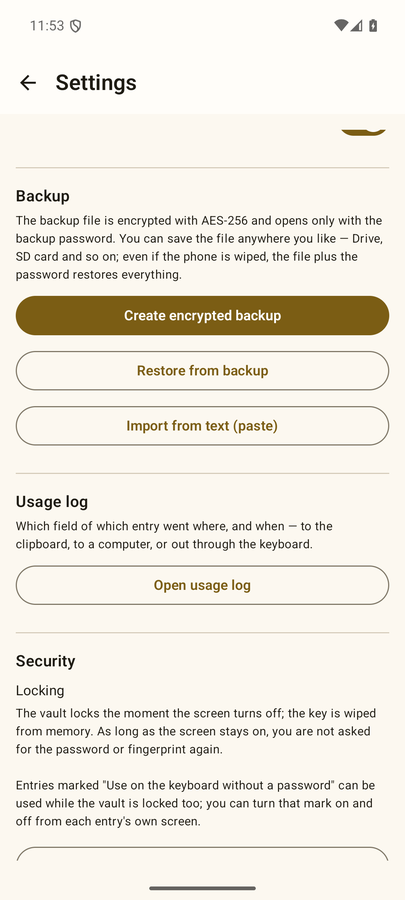
System backup (Google backup, device transfer) dey off on purpose, so na only one way your vault fit comot from the phone, and na the one wey you choose: Settings → Create encrypted backup.
You go choose backup password — make am different from your master password, because na the backup password dem go type for computers. Wetin e produce na one .vaultbak file wey you fit save anywhere: Drive, SD card, USB drive.
The file no depend on the device: e get im own salt and key-derivation parameters for the header. The file plus backup password go restore everything for any phone, even after factory reset. Restore am through Settings → Restore from backup, or from the welcome screen for new installation.
Restore dey offer add to wetin dey there or replace everything. Dem go verify both before anything write — wrong password go fail for the authentication step, and nothing no go delete until dem confirm the new data.
Bringing secrets from computer
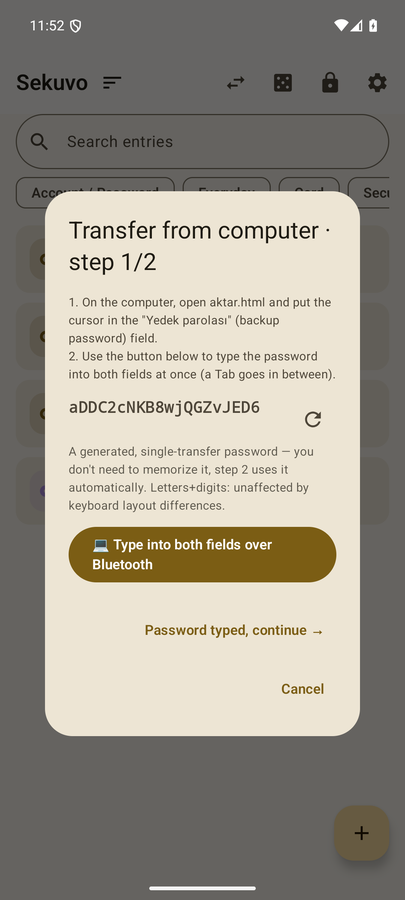
Typing long key with hand for phone na where mistakes dey happen. Sekuvo dey carry dem as encrypted envelope, two ways: text wey you paste, or QR codes wey you scan.
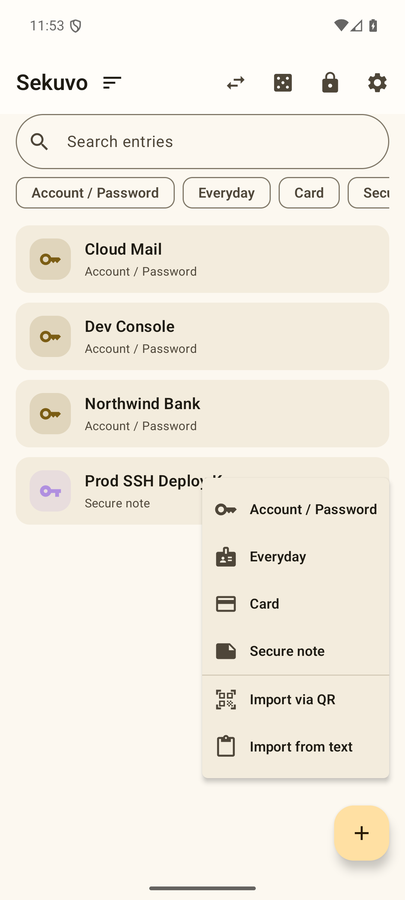
For the phone: the ➕ button dey offer Import through QR and Import from text. QR import go open the camera; the frames dey decode for the device, and transfers wey get plenty frames go show progress as dem dey collect am.
The computer-side tool
The tool wey dey build dis envelopes na one HTML file, and na deliberate say e be download, no be website. sekuvo.com no go ever ask you for secret; any page wey do dat go look exactly like phishing site.
- Open the project for GitHub and go to Releases.
- Download
aktar.htmlfrom the latest release. - Check the SHA-256 with the value wey dem publish beside am:
shasum -a 256 aktar.htmlfor macOS or Linux,certutil -hashfile aktar.html SHA256for Windows. - Open the file with double click. E dey run from your disk — the address bar go show
file://, no be website. - Paste your text, set transfer password, and e go produce the envelope as text or as QR codes.
- For the phone, scan or paste am, enter the same password, and choose add or replace.
All the encryption dey happen inside your browser, for your machine. vault-clip.py dey too for command line, wey do the same thing from clipboard or from file and e fit draw QR codes for terminal.
If you no wan use the tool
The envelope na open format, e no be something wey only Sekuvo fit create: PBKDF2-HMAC-SHA256 with 310,000 rounds, AES-256-GCM, wrap inside small JSON object. You fit build am yourself with about thirty lines wey you don already read, and paste the result inside Import from text — the app no get way to know which tool produce am, and e no even care.
The recipe dey inside the repository: docs/kendi-zarfini-uret.md (dem write am for Turkish).
Usage log
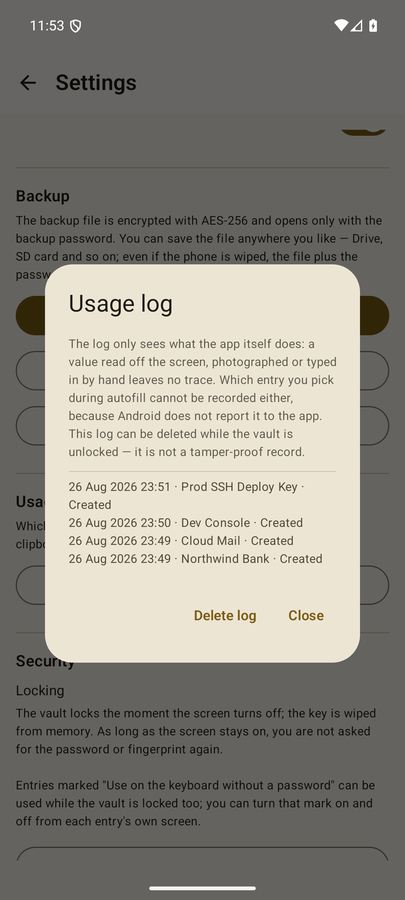
Sekuvo dey record which field of which entry go where and when: to clipboard, to computer through Bluetooth (with the target device name), or dem type am inside app from the keyboard. When computer don compromise, dis one go answer "wetin land there, wetin I need change".
The log dey encrypt with the same key as your entries, and the values no dey ever write inside am — na only the event type, field name, and the target. Deleting entry go delete im log too, and you fit clear everything from Settings.
Password generator
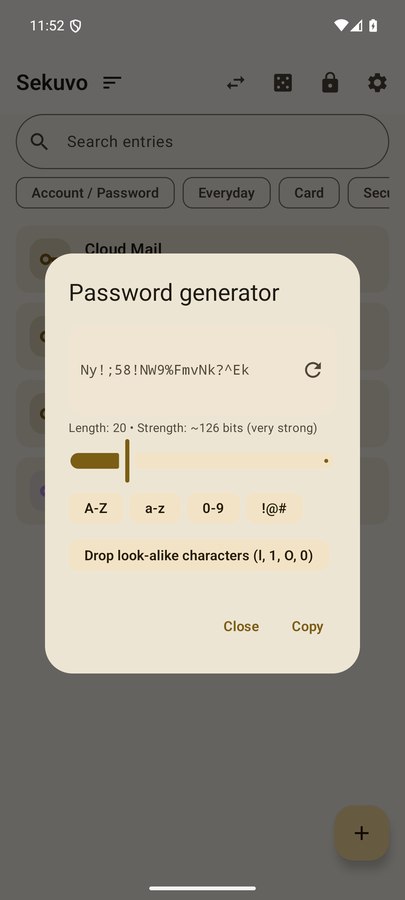
You fit access am from the 🎲 icon for the home screen, or beside the password field while you dey edit entry. E dey use cryptographic randomness source, e go produce 8 to 64 character, e go let you choose character classes, e fit remove characters wey resemble each other, and e go show the entropy wey e produce for bits.